 Capta
CaptaHow to record a demo video on a Mac
From a blank desktop to a finished product video in seven steps, with the editing done for you.
A demo video is the fastest way to explain software, and the slowest thing to produce by hand: record, scrub, cut the pauses, add zooms so viewers can see what you clicked, add music, export, and do it all again when the UI changes. This guide uses Capta, a free macOS screen recorder that makes the edit from what you did while recording, so the manual part is about ten minutes.
What you need
- A Mac with macOS 14 or later and Apple silicon (M1 or newer). Capta does not run on Intel Macs.
- The Capta download, 52.4 MB, free, no account.
- The app you want to show, with data that looks real.
- A microphone if you want narration. The Mac's built-in mic is fine.
Install Capta and grant Screen Recording
Download the 52.4 MB DMG from capta.cam, drag Capta to Applications and open it. It is signed with a Developer ID and notarized by Apple, so Gatekeeper opens it without a warning. On first launch Capta asks for Screen Recording, the one permission it needs to record. Two more make the edit better and can be granted any time from Settings → General: Input Monitoring, so typing and scrolling are seen and sped up, and Accessibility, so each zoom lands on the exact button you pressed. Without them, clicks are still tracked and zooms follow the pointer. Grant them in System Settings → Privacy & Security.
macOS applies a fresh Screen Recording grant only to newly launched apps. Capta notices the grant and offers a one-click relaunch; if you skipped it, the permission screen has a Relaunch button.
Nothing to record yet? The empty library offers Try the sample: a twenty-second synthetic demo you can drag zooms on, restyle and export before you have recorded anything.
Stage what you want to show
Open your app with realistic data, close unrelated windows and put the window where you want it. Decide on one flow: sign-up to first result, or the one feature the release is about. Two minutes of a single flow makes a better demo than ten minutes of everything. You do not need to rehearse pauses out; Capta removes them.
Open the capture panel with ⌥⌘R
Press ⌥⌘R from any app. The capture panel appears at the bottom of the screen: a slim toolbar with four record buttons (a window, the screen, an area, or the last one again, each with a small red dot) and four screenshot buttons. Open Options to choose a microphone if you will narrate, a camera if you want to appear in a corner bubble, and Record System Audio if the app's own sounds matter; whatever is on shows as a small icon beside the word. A window you record stays framed even if you drag it mid-take.
In a hurry? ⌥⌘5 skips the panel and records the window in front straight away.

Record a window, the screen or an area
Click a record button in the panel: pick a window, take the whole screen, or drag out an area. Before your very first take Capta shows seven quick recording tips, and Ready to record checks the source, microphone level, camera preview and free disk space; click Start recording. After that, a setup that worked goes straight to the countdown. On a MacBook with a notch, the countdown, the time, Pause and Stop sit beside the notch; on other Macs they are on a small floating pill. Then show the product the way you would show a friend, and talk if the mic is on. Mistyped a word? Keep going: typing is sped up in the edit and pauses are cut. Need a moment? Pause there, or press ⌥⌘P from any app; paused time is not in the video. Press ⌥⌘R again, or Stop, to finish.
Talking points: write them in Settings → Recording (or on the Ready to record panel) and a floating notes panel sits beside the take. It is never in the recording.
Check the automatic edit
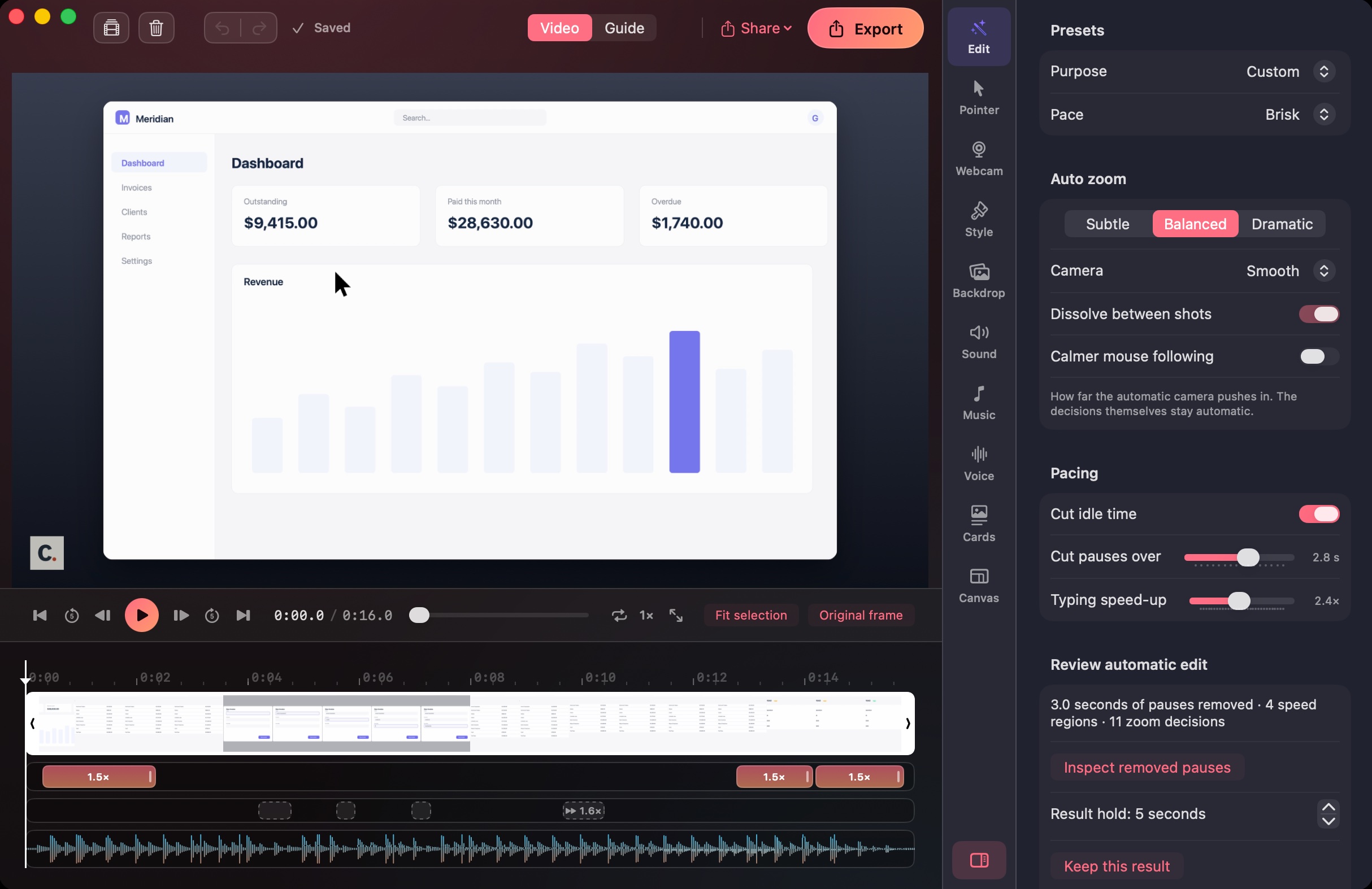
The recording opens in the editor with the edit already made. Each click you made is a zoom bar on the timeline, sized to the button or field you pressed. Dead air is gone, typing and loading run at double speed with eased ramps, and if you narrated, your words sit on the captions lane. Play it once; a line under the preview says what is still running (framing clicks, transcribing, naming chapters) and a notification tells you when it is done if you have switched away. If a zoom lands somewhere you do not want, drag it, stretch its edge, right-click to change its level, or switch it off. A stretch you want gone: ⌥I and ⌥O mark it on the filmstrip, ⌥⌫ cuts it. Auto zoom in the Edit tab (Subtle, Balanced, Dramatic) sets how far every zoom pushes in.
Add music, a background and a title card
In Sound, pick one of the three built-in tracks, search Creative Commons music with preview, or drop in your own file. Capta reads its tempo on your Mac and nudges each cut onto the beat; if you narrated, the music ducks under your voice. In Style, choose a gradient, mesh, pattern, your desktop picture or one of the Mac wallpapers, with padding, corners and shadow to taste; put a MacBook, browser or phone frame around the recording and let the backdrop drift with Living backdrop. In Cards, pick one of seven title and end card designs. The title, a caption and a post are written for you at the top of that tab, from the built-in templates or from a small model you download once in Settings → Models.
Export in 4K, or share a link
Press Export and pick a preset: YouTube, X or LinkedIn, Reels, square, an App Store preview, or a README GIF. Or choose by hand: MP4 or GIF, 16:9 for a landing page, vertical or square for social, up to 4K at 60 fps, H.264 or HEVC. Save Poster writes the frame under the playhead as a PNG for the thumbnail. Export is the only render; everything before it was a live preview. If you would rather send a link, press Share: Capta copies the export into your own iCloud Drive and Apple's sharing sheet hands you a view-only URL. Nothing goes to any server of Capta's.
An orange dot on the Export button means the file on disk is older than your latest settings. Export again to refresh it.
If you only need raw footage
macOS can record the screen on its own: press ⇧⌘5 for the built-in screenshot toolbar and choose Record Entire Screen or Record Selected Portion. You get an unedited .mov in QuickTime, which is fine for a bug report. Capta is for when the recording has to become a video someone else will watch: the zooms, cuts, captions and music are the point.
Common questions
How long should a product demo be?
Thirty to ninety seconds for a landing page, up to three minutes for a feature walkthrough. Because Capta cuts pauses and speeds up typing, a three-minute take often comes back as ninety seconds.
Can I fix the recording afterwards?
Yes. Every zoom is editable, the filmstrip has trim handles, captions can be retyped line by line, and every change is undoable. Export bakes the result whenever you are happy.
Does anything get uploaded?
No. Recording, analysis, transcription and rendering run on your Mac. Share copies the finished file into your own iCloud Drive, and only when you press it. The privacy page lists every network call the app can make.
One shortcut to record, one click to export.